
⚠️ Important note: This feature is currently in a pilot phase and available only to selected users.
1. Basics
To sell your products on Airbnb, you must first register here: Airbnb Sign Up
✅ Regiondo’s connection to Airbnb allows you to sync the following information:
- Availability
- Pricing
- Bookings
- Cancellations
- Tickets and QR Codes
- Messaging
❌ Currently not supported:
- Airbnb activity type Services
- Day tickets
-
Regiondo custom order options
Important:
- Changing existing bookings can only be done from your Airbnb account.
- Cancellations can be executed from either your Regiondo or your Airbnb account.
- Charges and refunds will be processed by Airbnb.
-
Airbnb applies its own fees and commissions separately. For more information, contact Airbnb directly.
Requirements:
1.1. Only products with automatic booking acceptance can be connected to Airbnb. Learn how to change your settings here: How can I change the method of accepting a booking?
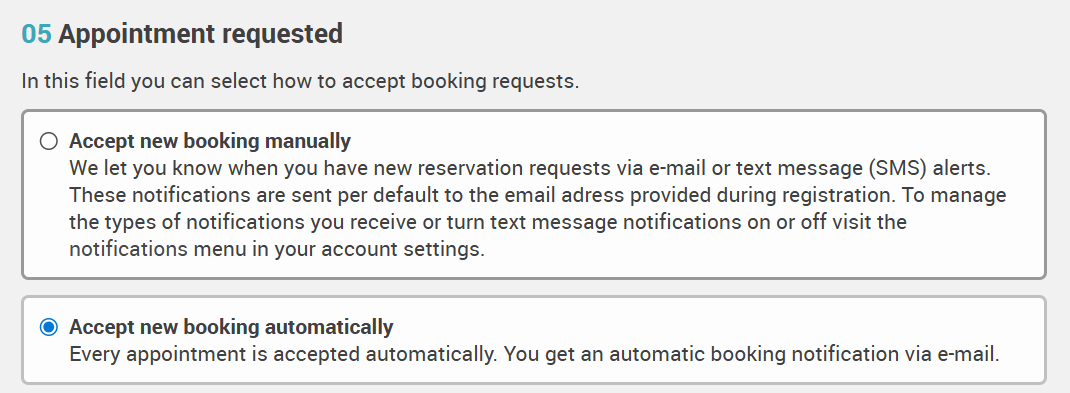
1.2. Only products with a single price list can be connected to Airbnb.
1.3. All ticket categories within the selected price list must:
Have a set duration
Use the same duration (e.g. 2 hours)
1.4. The maximum total capacity per price list is 10 for public activities and 30 for private tours.
Note: The name of a price list is limited to 32 characters.
1.5. We strongly recommend creating a single itinerary for your Airbnb product. Its duration must match the duration of your Regiondo ticket categories. If the duration changes, make sure to update it on both platforms.
2. Activating the connection
2.1. Login to your Regiondo Dashboard and navigate to Channel Manager > Sales Channels.
2.2. Search for Airbnb in the search bar.
2.3. Click the pen icon next to the Airbnb Sales Channel to Edit.
2.4. Click on Connect with Airbnb. You will be redirected automatically; follow the instructions to complete the authorization process.
2.5. After successful authorization, you will be redirected back to your Regiondo dashboard. Click on Sync data from Airbnb to synchronize your listings.
2.6. Select the Regiondo product you want to connect by checking the box. You can then either create a new activity on Airbnb via Regiondo or map an existing one. The following steps explain how to connect an existing activity—creating a new activity is covered separately.
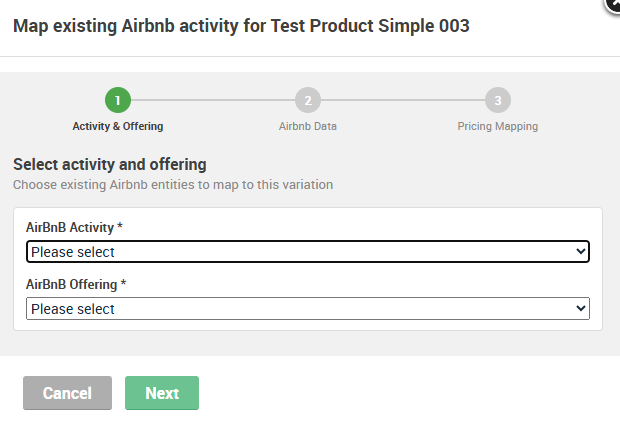
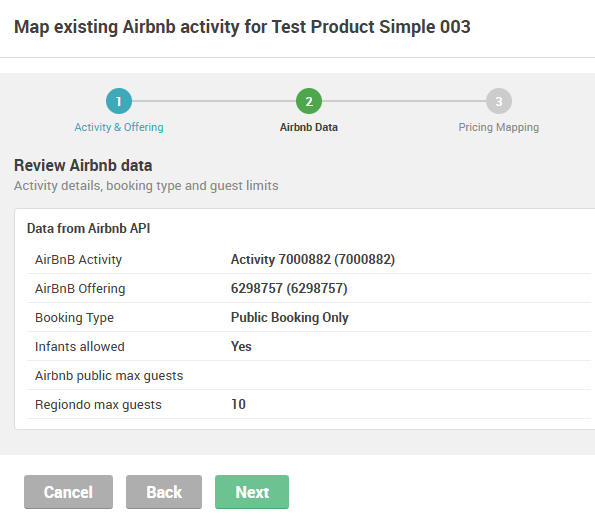
2.7. Check your Airbnb activity settings.
2.8. Airbnb currently only supports the Adult ticket category. Map your corresponding Regiondo ticket category by selecting it from the dropdown.
2.9. Click Save mapping.
3. Create Airbnb products out of Regiondo
Regiondo also gives you the opportunity to create Airbnb products without having to leave your Regiondo Dashboard.
3.1. Click on Create new activity on Airbnb
3.2. Select your product type (Regiondo only supports experiences for now), theme category, theme format and your booking type.
Important: Regiondo only supports the booking types “Public booking only” and “Private booking only”.
3.3. Map your Regiondo ticket categories as described above, and specify whether infants are allowed.
Important: For experiences, Airbnb currently only supports the “per guest” pricing mode.
3.4. Add some information about you as a host and the minimum age, which is required to join your activity
3.5. Add your legal requirements, accessibility features, and cancellation policy.
3.6. Review your settings and create your activity
Important:
It might take up to 7 days until newly created activities are reviewed and approved by Airbnb.
4. Manage your Airbnb bookings in Regiondo
4.1. Which customer information is displayed?
For orders placed via Airbnb, Regiondo receives and displays the following customer information:
- First name
- Last name
- Alias email address
For security reasons, the buyer’s email address is always displayed as airbnb@regiondo.com
4.2. How can I contact my customer?
You can contact your customers as usual, using the messaging tool in the booking detail page